

Step 1: Branding
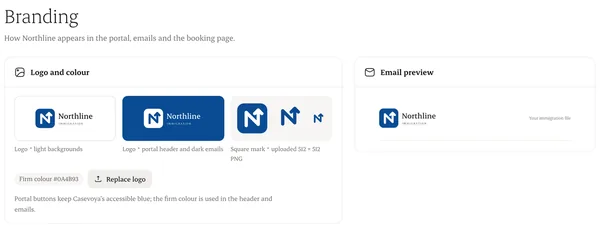
Settings › Firm. Upload your logo and choose a colour. The portal shows “Powered by Casevoya” in small type only.
Step 2: Calendar
Connect Google or Microsoft 365 and pick which calendars Casevoya can read. Others stay invisible to us.
Step 3: Payment destination
Connect your firm’s own payment account for earned fees. Money goes to your firm, never to Casevoya.
Step 4: Client account details
For advance payments, enter your client (trust) bank account. It’s used for manual transfers and shown on requests.
Written from the Casevoya product specification (Firm activation 5, CRM-03, FIN-02). Screens and wording may change before launch.